0.6.2, free and open source · for the ZECTRIX NOTE4C, a 400 × 300 four-colour e-paper screen
A calm poster of your day.

emini Home puts the forecast, one headline, a few words of your own, the sky above you and the air you breathe on a small four-colour e-paper display, the kind that keeps its picture with the power off. You set it up from your phone. After that the device fetches, draws and schedules everything on its own, without an account or an emini server in between.
- What it is
- Free, open-source software for one small e-paper screen, the ZECTRIX NOTE4C. It turns that screen into a poster of your day.
A phone shows everything, which is why you have to ask it. This hangs on the wall and is simply there — the way a clock is there.
5% off Buy a NOTE4C from ZECTRIX
No device yet? You get 5% off through this link or with the code TOMASZ. (affiliate link)
The display
One forecast, three compositions.
In the panel, pick a composition for each screen, or choose In turn and let all three take turns.


- Rhythm Draws the coming hours as a curve, so you can see when it warms up and when rain arrives.
- Atlas Gives the sky half the page and leaves the numbers the other half.
- Print Reads like the corner of a newspaper: the big number first, the sky beside it.
Under the temperature, each composition shows the range for the next 24 hours, then one short line about rain, such as “Dry until 21:00” or “Rain from 18:00”.
With In turn, a screen shows Print, then Rhythm, then Atlas, moving on each time it comes back to the display. If the same screen stays up longer, the composition changes on its own — you set how often in Change composition every … minutes, 30 unless you change it. During quiet hours nothing changes.


One headline. From BBC World, or from any public news feed you paste in (the RSS or Atom address a site publishes), as long as its address starts with https. A link to the full story waits in the panel. Headlines and notes in Simplified Chinese are drawn too.

Your note. A reminder to water the basil, a line from a friend, anything worth keeping in view.

Sky. Sunrise, sunset, the length of the day and how it changed since yesterday, the Moon's phase and the days to the next full or new Moon. All of it is worked out on the device from your saved place; nothing is downloaded. Rhythm draws the sun's height over the whole day, Atlas gives the page to the Moon.

Air. The European air quality index and the next 24 hours of PM2.5 on one warm scale from paper to red, the UV index with a sunscreen hint and, in Europe, alder, birch, grass and mugwort pollen. From Open-Meteo, only while the screen is on. Rhythm draws the curve, Atlas a 24-hour dial.
The display speaks three languages.
English, Polish and Simplified Chinese — every label, the date as 9月15日, air quality, UV and pollen by name. You change the language by holding the lower side button for 5 seconds, or in the panel under Settings → Preferences.
There is no grey on this display.
Every pixel is black, white, red or yellow. To draw warmth, light and cloud, the renderer mixes the four pigments in ordered patterns, the way a printer builds a shade out of dots. Red and yellow patterns are never finer than 2 pixels, while black and paper-white can still use single pixels. The picture stays on the display even without power.

Pick the grain, the colour and the brush
In Settings → Appearance you set how coarse the pattern is and how much colour it uses, for every screen at once. Because colour never goes below 2 pixels, Fine and Medium differ only in their black patterns. Since 0.5.0 you also pick the brush. Four pigments and no grey mean every tone on this display is a pattern, so we treat the renderer as a brush and leave the style of the picture to you: soft grain, halftone dots, or the ordered grid of the earlier versions. Here is the same sky with each choice.
Pixel texture
 Fine 1 px, colour 2 px · default
 Medium 2 px
 Large 4 px
Colour use
 Black & white no colour
 Balanced less colour
 Expressive full colour · default
Brush
 Grain soft, no grid · default
 Halftone printed dots
 Grid classic 0.4

The phone panel
Your phone is the remote.
The NOTE4C serves its own settings page over Wi-Fi. There is nothing to install on the phone, and your settings stay on the device.
-
Join the device's Wi-Fi
On first start, or after you hold OK / BOOT for 2 seconds, the display shows a network called
emini.ink, its password and two QR codes. The setup window stays open for 5 minutes.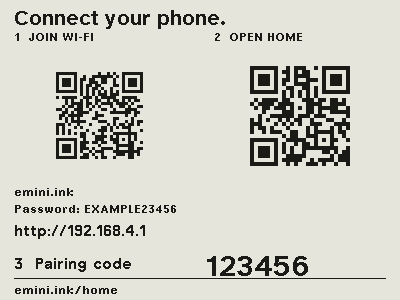
Renderer 0.5.0 · Setup screensample data -
Open the panel and pair
Go to
http://192.168.4.1and type the six-digit code from the display. The browser remembers the connection. The device keeps up to four browser connections, and pairing again on your home Wi-Fi uses up another one of the four.
Panel 0.5.0 · Pairing -
Bring the device onto your Wi-Fi
Pick your network and enter its password; the device joins 2.4 GHz networks with WPA2 or WPA3 Personal. Then move your phone to the same Wi-Fi, open the address the panel shows and pair once more.

Panel 0.5.0 · Your home Wi-Fi -
See what is on the display
The Home tab shows the last picture the display confirmed, pixel for pixel, with its status and battery level.

Panel 0.5.0 · Home tab -
Adjust each screen
Every screen has its own page with a preview and a choice of composition, including In turn. On the Weather page, Search for your town and pick it from the list. The search goes from your phone to Open-Meteo, so the phone needs internet access, for example on your home Wi-Fi. Use my location lets the device guess its area from its own internet address instead. Tap Save settings, then Show now to put the saved picture on the display.

Panel 0.5.0 · Weather page -
Give it a rhythm
Keep one screen, switch screens at three times of day you choose, or rotate anywhere from every few minutes to once a day. Quiet hours hold the picture still overnight.

Panel 0.5.0 · Rhythm tab
Day to day
Three buttons, one panel.
Once it hangs on the wall, this is all there is to know.
In the panel
- Show now
- Publishes what you have saved to the display.
- Check for updates
- Fetches the forecast, the headline or the air again, on the source card of a screen that is switched on.
- Pause for 60 min
- Holds the current picture, on the Rhythm tab.
- PL / EN, moon / sun
- Language and dark mode of the panel itself.
- Panel address
- On your home Wi-Fi the panel is at the device's own address, shown in Settings → Your device (for example
http://192.168.1.23orhome-1a2b.local). Bookmark it. In Breath, the default, press OK on the device first and give it a few seconds: the panel then answers for five minutes. Theemini.inknetwork and192.168.4.1exist only during the 5-minute setup window. - Connect another phone
- Settings → Your device; up to four phones remember the pairing.
New in 0.6
- Breath, the new default: Wi-Fi is off between downloads, so by our estimate a charge lasts two to four weeks, not a day and a half to two days. Press OK on the device and the phone panel opens for five minutes.
- Want the panel always on? Choose Open under Settings → Battery.
- The emini card has two faces: the battery and the project on the first press, every counter on the second.
- The news feed is asked about twice an hour, and the device keeps a week of its own battery readings.
- 0.6.1 keeps the green status LED off on units where it stayed lit.
- 0.6.2 fixes what a review of 0.6.1 found: a crash restarts the device, a screen that is switched off downloads nothing, and failed downloads wake the radio less often.
- 0.6 is the final version of emini Home.
Install
Two ways to put it on the device.
One goes through a browser and needs no commands. The other goes through a terminal and makes a copy of the device's memory first. Both put the same release on the device. Below, without dressing it up: what we have tested and what we have not.
In your browser
For anyone with a computer running Chrome or Edge. Nothing to install on your computer, and no commands to type.
- Plug the NOTE4C into the computer with a USB-C cable that carries data, not only power. Many charging cables do not. If the installer then sees no device, hold the round OK button for 2 seconds until the setup screen appears and plug the cable in again: on battery Home sleeps between events, and its USB port with it.
Open the web installer esp32ai.me
- Give it the emini Home file: the one you downloaded, or a link to it.
- When it finishes, unplug the device and set it up from your phone.
Make a copy of the device's memory before you start. That copy is your only way back to the software the device came with, and the guide beside this one has the commands for it.
In a terminal
For anyone who wants a copy of the device's memory and a check before a single byte is written.
Two full copies of the memory with esptool, Espressif's command-line tool, then a check on both that answers READY or STOP, then writes the two files and checks them. Every command is written out in the guide, with what each one does.
From a terminal, a first install writes two files and an update writes one; the web installer also writes an empty boot selection record, so the device starts the copy it has just received. The files and their checksums are in the 0.6.2 release, and the exact addresses are in the installation guide.
What we have tested, and what we have not
Only the NOTE4C Devkit with the four-colour display. A check we ship with the guide reads the copy of your device's memory before anything is written and says READY or STOP. It cannot tell a NOTE4 from a NOTE4C, so check which one you have first.
Installed over the factory firmware, verified and started on one NOTE4C Devkit with the factory partition layout. Later versions went onto the same unit as updates.
Done end to end from an iPhone on that unit, from the setup Wi-Fi to the panel on your home network. Android phones have not been tried yet.
A full picture change takes about 25 seconds.
A town you search for, or an estimate from your internet address. The estimate can land on your provider's city, and it never replaces a town you picked.
Starting over, which erases only Home's settings over USB, has been done on that unit. If Home finds saved settings it cannot use, it starts with default settings or the setup screen instead of stopping.
0.5.2 lasted a day and a half to two days on a charge, worked out from two full days on battery on one unit. In Breath, the default since 0.6.0, Wi-Fi is off between downloads and we expect two to four weeks; in Open, with the panel always on, about a week. All three are estimates: none comes from a measured full discharge. It can also hang plugged into USB-C.
Restoring your factory backup uses the standard esptool procedure. It has not yet been tried on a real unit.
Over USB: the same web installer, or the installation guide again in a new, empty folder, so your first backup is never overwritten. The firmware does not check for new versions, and 0.6 is the final version.
If something goes wrong
A picture change takes about 25 seconds, so a display that looks stuck is usually just working. If the installer stopped with an error, press the reset pinhole once: otherwise the device can stay in its download mode, with the old picture on the display, while the battery runs down. If the device does not start after an install, plug it in again and write the file once more. If it still does not start, your copy of its memory puts the original software back, following the guide. Going back that way has not been tried on a real unit yet, which is why the copy matters.
What you need, and what it costs you
Two separate things. The screen is hardware: one ZECTRIX NOTE4C Devkit, which you get from ZECTRIX, a different company. emini Home is the software that runs on it: free, open source under the MIT licence, with no account, no subscription and no server of ours in the middle. You install it yourself once, over USB, and it is yours to keep — along with the right to change it.
emini Home is an independent project and works the same whichever way you got your device.
Your data
Who sees what.
No emini server sits between your phone, the device and the internet. The NOTE4C asks a few public services for what it shows, much like a browser would. Your phone talks to Open-Meteo only while you search for a town.
- MET Norway
- Only while the Weather screen is on: the forecast location, rounded to 4 decimal places, and your internet address.
- Open-Meteo
- What you type into the town search, sent from your phone with the phone's internet address. The device saves only the place you pick.
- Open-Meteo Air Quality
- Only while the Air screen is on: the forecast location, rounded to 4 decimal places, and the device's internet address, about once an hour. Nothing when the screen is off.
- Your news feed
- Only while the News screen is on: a request for that feed and your internet address. BBC World unless you change it.
- FreeIPAPI
- Your internet address, when the panel asks the device to estimate its location.
- Time servers
- Ordinary time requests from your internet address, so the schedule and the date are right.
- Your network
- Your router and DNS server see the names the device looks up. Without pairing, other devices on your Wi-Fi can see its name, address, firmware version, current screen and last button press, which over time shows when someone uses it.
- This website
- The device never contacts it. The site counts visits and link clicks with self-hosted Plausible, without cookies. Like any web server, its host and the analytics server see your IP address.
The panel runs over plain HTTP on your own network, and the device stores its settings, including your Wi-Fi password, without encryption. It also keeps a week of hourly readings about itself: battery, charging, pictures, downloads and time awake. Together they are a rough trace of when the room was busy, and only a paired browser can read them. Keep it on a network you trust. Before you give it away, erase its settings over USB as the installation guide describes. That leaves the factory firmware's own settings area as it is, so a Wi-Fi password the factory firmware saved there stays in the device’s memory. Read the privacy notes.
After that it just hangs on the wall and shows you the day.